How to Edit Photos, Part 1: The Basics

how-to-edit-photos-part-1-800x800

Hey, guys! 😀

Grace recently wondered if I could do a tutorial on how to edit photos, and I thought that was a great idea! I decided to make this a mini-series, covering basic photo editing, adding effects, touching up photos of people, and maybe a little bit of graphic design and collaging too. I’m really excited!

Anyway, let’s get started. Today I’m going to go over the basic photo editing tools and then show you how to use those tools to fix two common photo problems.

Introduction

I use PicMonkey for pretty much all of my photo editing, and I highly recommend it! It’s very easy to use, and it’s free – although you can pay to upgrade to Royale and get some extra features. (I have Royale, by the way, and I would definitely recommend it if you edit photos a lot. I’ll talk more about Royale later in the series.) But don’t worry about that for now. All the tools I’m going to go over today are completely free.

So, open PicMonkey, and hover over the bar at the top of the page where it says “Edit.” Open the photo you want to work on. The section of the editor that pops up is called “Basic Edits,” and that’s what we’ll be using today.

Basic Edits

  1. Crop: The first tab of the “Basic Edits” section is “Crop.” Cropping is quite a valuable tool that allows you to cut out ugly surroundings from the corners of your pictures, make the composition of your photo more interesting, or simply zoom in closer to the subject.
  2. Canvas Color: This just covers your whole picture with one color. You won’t use it to edit your photos, although it’s great for graphic designing.
  3. Rotate: The rotate tab allows you to flip your picture any way you want. It also allows you to straighten your photo, which is very helpful if you were accidentally holding your camera crooked and your subject looks like it’s sliding off the picture. 😀
  4. Exposure: In my opinion, this is the most important tab in the Basic Edits section (well, maybe it’s tied with “Crop”). You can work wonders simply by adjusting the exposure of a photo, and we’ll be using this tab a lot, later in this post.
  5. Colors: This tab includes sliders for saturation and temperature, as well as a mysterious button called “Neutral Picker.” Actually, it’s not that mysterious. 🙂 Basically, when you click on the parts of your photo that should be white, the Neutral Picker auto-adjusts the temperature to turn those off-colored spots white again. Temperature controls how warm or cool a photo is – in other words, whether it has a red (warm) tint or a blue (cool) tint. And saturation, as you probably already know, makes the colors of your photo more saturated and bright.
  6. Sharpen: Sharpness and Clarity actually ARE different – just a bit. My unscientific description is that Sharpness yields a more subtle effect and focuses on sharpening the details, while Clarity is bolder and boosts the contrast of your photo while giving it a gritty effect at the same time.
  7. Resize: This simply downsizes your photo to a smaller file size so it takes up less space on your computer (or blog). Anywhere between 800 and 1280 (and even a bit larger) would be a good size for sharing online. One thing to keep in mind is the smaller the size, the lower the quality of the picture.

Using Your Tools

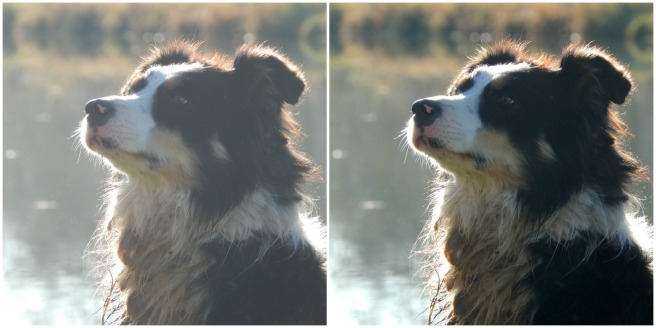
Now that you know what everything does, let’s put your tools to use! I’m just going to show you a few examples and walk you through what I did. (Note: the “before” pictures are on the left, and the “after” pictures on the right. Just in case you couldn’t tell. 😉 )
before after 8.jpg

Isn’t it amazing what the Shadows slider can do? That’s seriously all I did. I moved the “Shadows” slider to -44, and that’s it.

before after 4 (1280x640).jpg

This is a more subtle edit, but I think the “after” picture definitely looks more vibrant. The photo on the left is kind of drab and gray, so I upped the saturation a bit and adjusted the exposure. I also straightened the photo so the ocean isn’t tipped to one side like that. (And hmm, I might have lowered the temperature also, but I can’t recall for sure. Oops. XD )

before after 7.jpg

The main difference in this photo is that now you can actually see the cute wittle kitten instead of losing him in the surrounding scenery. I told you cropping was a helpful tool! 😀 I also straightened the photo so the kitten wasn’t falling off the face of the earth, upped the “Sharpness” slider, and adjusted the exposure just a tad.

before after 3 (1280x640).jpg

Wow, so much better! This picture was washed out to begin with, but by lowering the brightness and shadows, and adding a little bit of contrast, it looks bright and beautiful again like it’s supposed to. And speaking of over-exposed photos, we should move on to the fixer upper part of this post. (By the way, I l♥ve the show Fixer Upper! Have you ever watched it? It’s sooo good. Ahem…)

How to Fix an Over-Exposed Photo

An over-exposed photo is one of my most common problems. But thankfully it’s easy and fun to fix!

This is the photo we’ll start with:

087

Eh. The content is good, but the lighting is off: it’s too bright and has a sort of bland grayish-white wash over everything. We must rescue this poor photo in distress!

Pretty much everything you need to fix an over-exposed photo is in the Exposure tab, so go ahead and open that up. The two main things to do for an over-exposed picture are to lower the brightness and lower the shadows. Here’s a screenshot of what I did:

photo editing part 1 5 (1033x518).jpg

You can tell from the sliders that I lowered the brightness and shadows significantly (to -14 and -18 respectively) and added a tiny bit of contrast and highlights. And that’s pretty much it! (Note: I did also use the “Burn” tool to darken a few spots in the photo, but I’ll talk about that more in another post. For now, just concentrate on using the “Exposure” tab.)

Before and after. So much better!

before after 6 (1280x640).jpg

How to Whiten a Photo

Sometimes photos have a weird yellowish or bluish tint, especially on the light parts of a picture.

Like in this photo:

snowy-owlet-1-1-1024x768

This really isn’t a bad picture, but you can see a slight orangish tinge over everything, which makes it look dingy rather than fresh and clean. It’s especially important to get good, clean-looking photos of products you sell, and this owl just so happens to be in my Etsy shop. So, let’s clean him up a bit, shall we?

First, open the “Exposure” tab.

photo editing part 1 10 (1179x522).jpg

The main thing you need to do here is bump up the highlight slider, but I also messed with the brightness and shadows slider a bit too. Here’s a tip: use mostly highlights instead of brightness to brighten up a photo, because too much brightness will make the photo look washed out. “Highlights” brightens just the white parts instead of the whole photo.
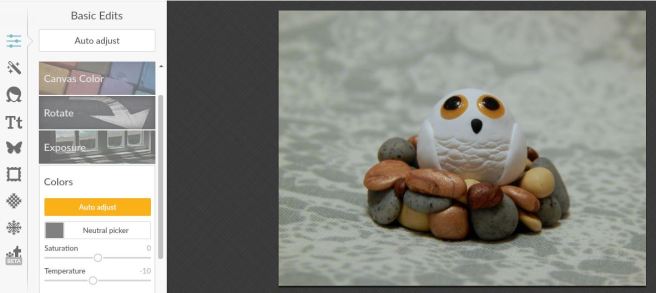
photo editing part 1 11 (1182x528).jpg

Next I opened up the “Colors” tab. Since my picture is too red, I moved the Temperature slider down to -10, which added some blue to even it out.

And here’s the before and after. A subtle difference, but do you see how the one on the right looks cleaner, fresher, and more appealing?

before-after-2-1280x640

Well, I guess that’s it! I give you a pat on the back and a virtual bag of chocolates if you read that whole thing. O.o XD

Heh heh. I hope that was helpful to you! Feel free to ask me any questions in the comments if you didn’t understand something. 🙂

Have a lovely day, lovely people!

***Allison***

AND THE WINNER IS…

file-oct-14-8-32-11-pm-800x800WHO WILL IT BE? WHO WON THIS GIVEAWAY? WHO GETS THE PRIZE?
*

*

*

*

*

*

*

*

*

*

*

*

CAN YOU GUESS?

*

*

*

*

*

*

*

*

*

*

*

*

IT’S MEEEE! Nope, just kidding…

*

*

*

*

*

*

*

*

*

*

*

*

*

*

I’ll give you a hint: the winner is a “she.” Oh wait… so was everyone who entered…

*

*

*

*

*

*

*

*

*

*

*

*

*

AHH THE SUSPENSE! Okay, okay. I’ll tell you now.

*

*

*

*

*

*

*

The winner is… TheOriginalPhoenix!

Congratulations, Jasmin! You won the prize of a miniature garden kit and an Etsy coupon! Jasmin’s quote was:

 “The problem is not the problem. The problem is your attitude about the problem.” – Captain Jack Sparrow

Thank you soooo much, everyone who entered! Here are a few of my favorite verses/quotes/riddles from you guys.

Bible verses:

Jeremiah 29:11: “‘For I know the plans I have for you,’ declares the Lord, ‘plans to prosper you and not to harm you, plans to give you hope and a future.'” (from Grace and Mya(AGLane) )

Proverbs 3:5-6: “Trust in the Lord with all your heart and lean not on your own understanding;  in all your ways submit to him, and he will make your paths straight.” (from Lainey)

Quotes:

“You can never cross the ocean unless you have the courage to lose sight of the shore.” -Unknown (from Lydia)

“I believe in Christianity as I believe that the sun is risen: not only because I see it, but because by it I see everything else.” – C.S. Lewis. (from Jewel)

Riddles:

“Alive without breath, as cold as death. Never thirsty, ever drinking. All in mail, never clinking.”

Answer: a fish! (from Grace)

“What gets wetter and wetter the more it dries?”

Answer: a towel! (from Gracie and Bella)

Thank you once again, everyone, for participating! It was lots of fun! 😀

***Allison***

1,000 Followers Giveaway!

I STILL CAN’T BELIEVE IT, GUYSSSS! 1,000 FOLLOWERS! EXCEPT BECAUSE I TOOK SO LONG TO POST THIS, NOW IT’S 1,190 FOLLOWERS!!! OH MY GOODNESSSSSSSS! Just think… before being featured on WordPress Discover, I had 150 followers. That’s really pretty great! And now…. *GASP* It’s simply amazing.

Thank you all soooooo, so much! You guys are one of my top favorite parts of blogging. ♥ I’ve met Clara, Grace, Hayley, K. A., Misty, Rebekah, Josie and so many more lovely girls through blogging. I love you! ♥

In celebration of this momentous moment in my blog’s life, I’m hosting a giveaway (in case you haven’t noticed). 😀

» The Prize «

 The prize will include two things:
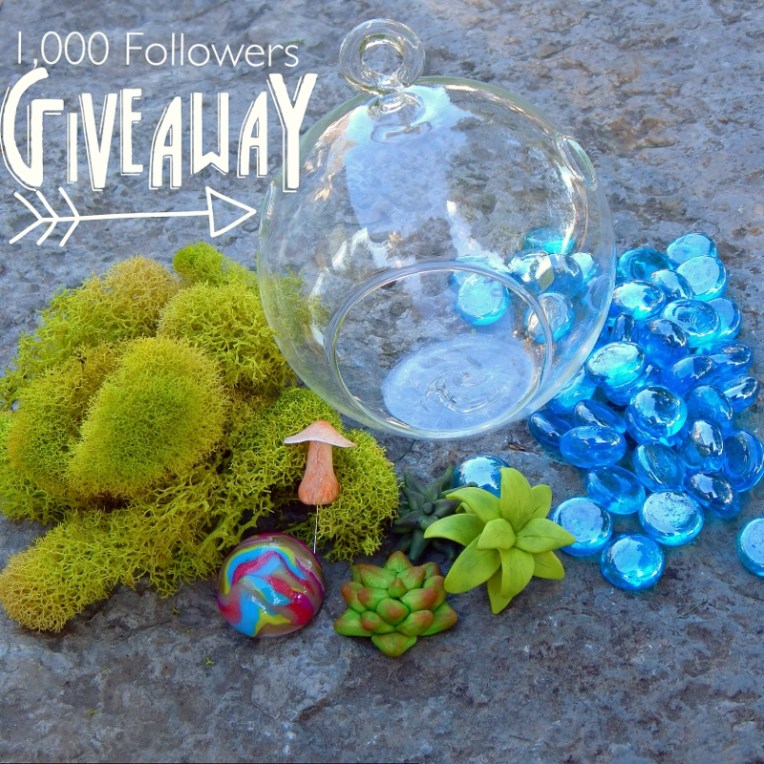
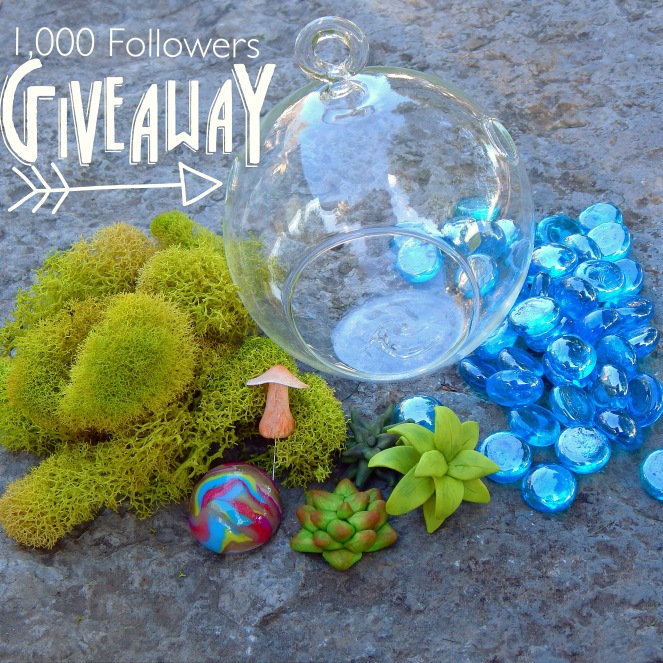
  1. A miniature garden kit to make a garden similar to this one. This includes the following:

File Oct 14, 8 32 11 PM.jpeg002003004005

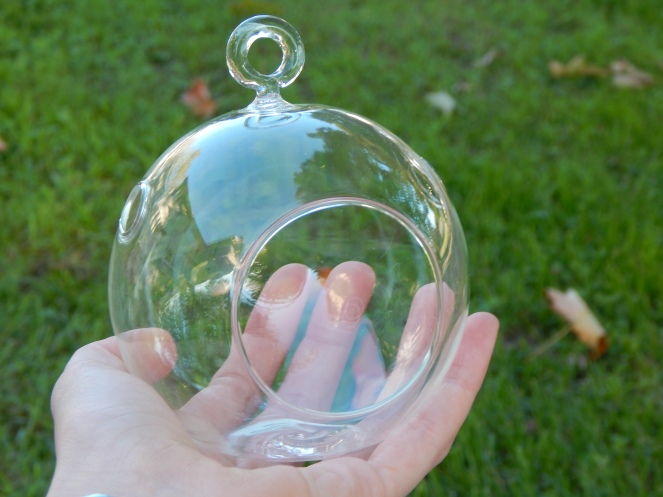
  • 1 glass terrarium globe
  • A mini-bag of soft, green, dried moss
  • A mini-bag of blue glass pebbles
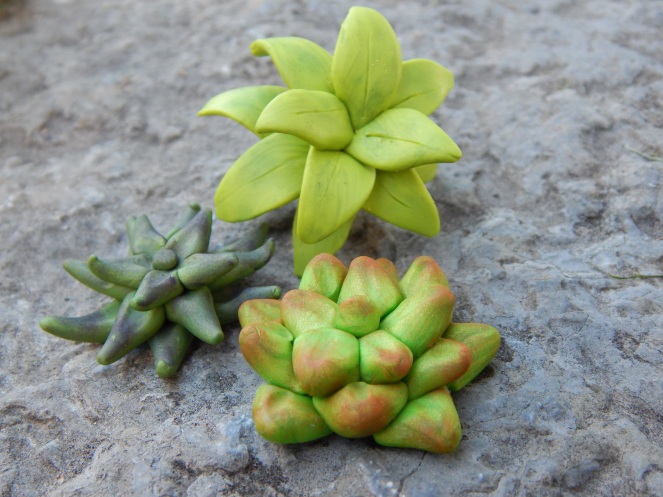
  • 3 clay succulents (made by me)
  • 1 clay mushroom (made by me)
  • 1 shiny, marbled clay stone (made by me)
  • Plus a few other tidbits I might throw in 😉

2. Your choice of one of the following coupons for my Etsy shop:

  • 30% off any item
  • Free shipping on any item

» How to Enter «

  • If you are under 18, please get a parent’s permission before entering this giveaway.
  • I will need your email address and/or your address so I can notify you and give you the prizes. But of course I will NOT share either of those – they’re safe with me. 😉
  • To enter, comment saying you would like to enter (well duh), and include a bible verse, quote, or riddle (or all of the above) that you like.
  • NOTE: This giveaway is only open to my readers living in the United States. I’m so sorry about that, but shipping gets complicated (not to mention expensive) otherwise. 😥

» To Collect Extra Entries… «

  • Take my survey to collect one extra entry – but please take it only if you actually read my blog or it won’t help me much. 😉 (By the way, this is a new survey, so none of you have taken it yet as far as I know.)
  • Share this post on Pinterest or social media to collect one extra entry. (NOTE: You may share this post as many times as you like, but you still will only get one extra entry.)
  • Share any other post from my blog on Pinterest or social media to get one extra entry. Please pick a post you actually like instead of randomly sharing any post. (Again, only the first share will give you an extra entry, but I’m ecstatic if you want to share more! 😀 )

»When Will This Giveaway Close?«

  • This giveaway will close October 28th at 12:00 am, ET. You have only two weeks!
  • On October the 29th I will announce the winner. I’ll also add the bible verse, quote, or riddle they included with their entry, as well as my favorites from the rest of the participants – just to add a little extra fun. 🙂

AAAAHHH THIS IS SO EXCITING! Thank you guys once again for reading my blog. ♥

***Allison***

Some Clayations :)

Today I shall show you some of my many polymer clay creations (or “clayations” XD ).

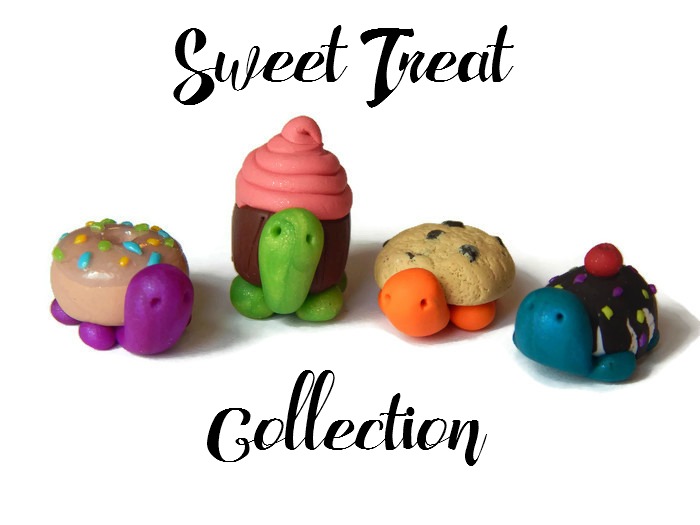
First up, I started a little collectible series on my Etsy shop called Tiny Turtle Collectibles. They are mini turtles with unique and fun shells. The only collection I have up so far is the Sweet Treat collection. Here they all are:

sweet treat turtles collection (700x525)

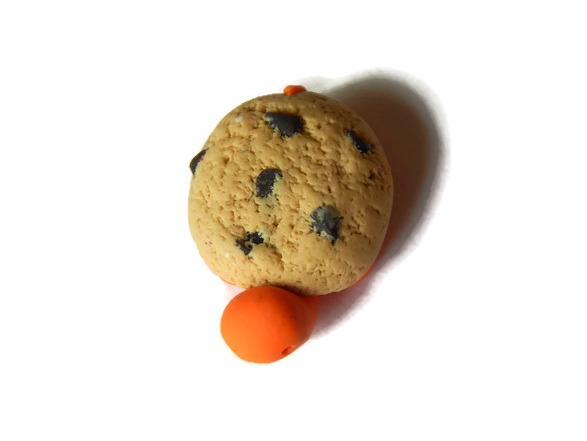
Little cuties. 🙂 From left to right: Sprinkles, Cocoa Cupcake, Chippy, and Sundae Monday. (Sundae Monday, Sundae Monday, Sunday Monday… it’s so fun to say. XD ) Here’s a close-up of Chippy:

sweet treat turtles (12) (587x441)

If you’d like to see more pictures of the teeny-tiny turtles, take a peek at my Etsy shop! The link is up there ↑ somewhere… aw, I’ll just give it to you again. 🙂 Wee Little Crafts

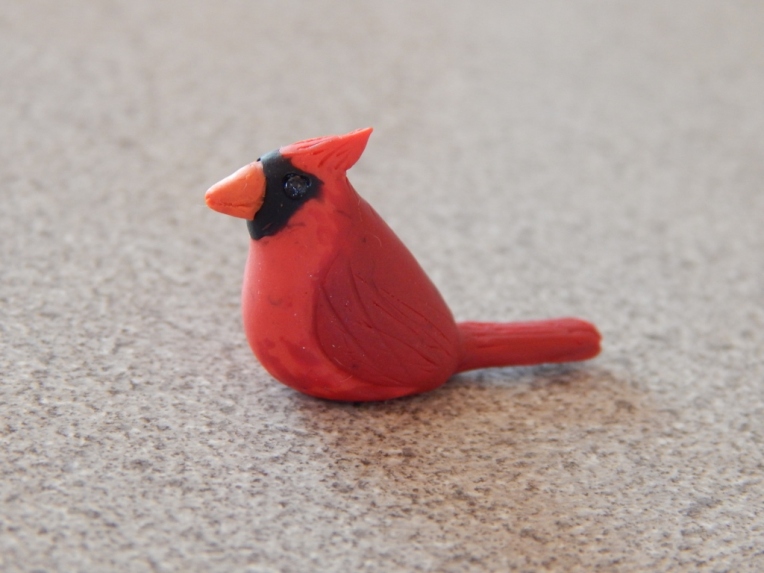
I made this lil’ cardinal for my grandma for her birthday:

-Allison(Carmen's birthday) 011 (1024x768)

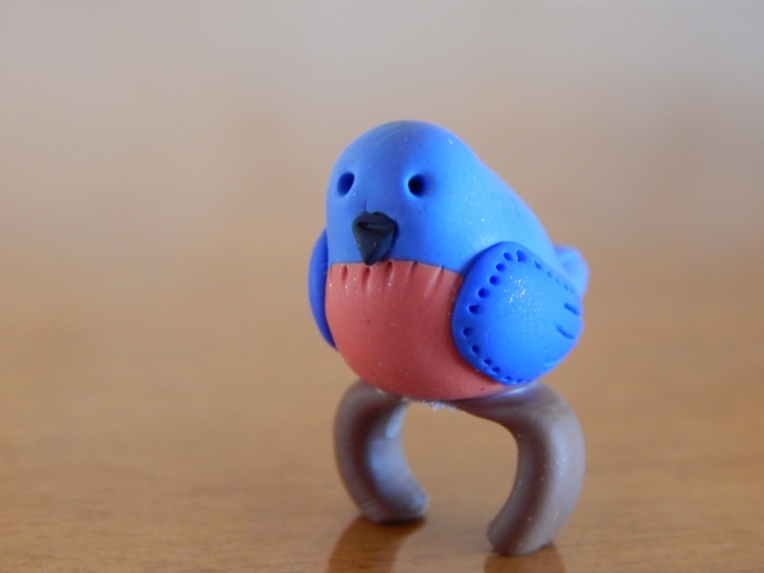
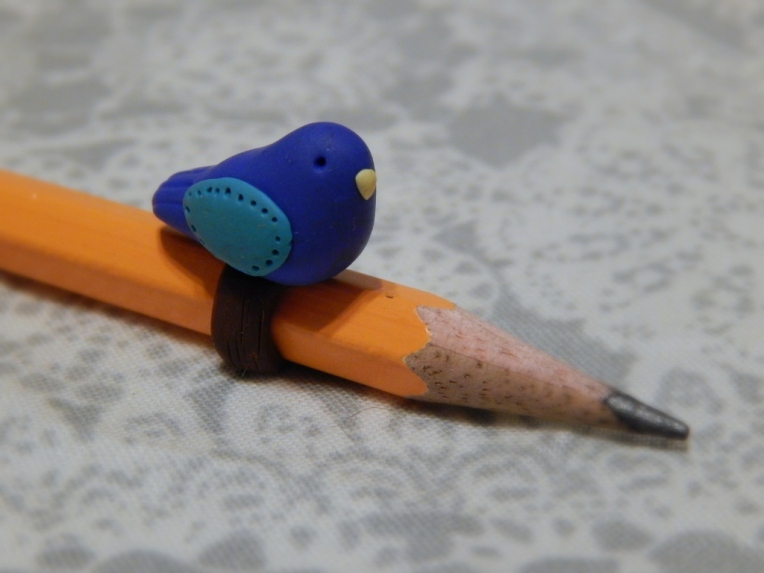
And I made this bluebird pencil pal for my cousin’s birthday:

002 (1024x768)

I put this birdie pencil pal in my shop. (It’s a blue bird but not a bluebird. XD )

blue bird pencil pal 3 (1024x768)

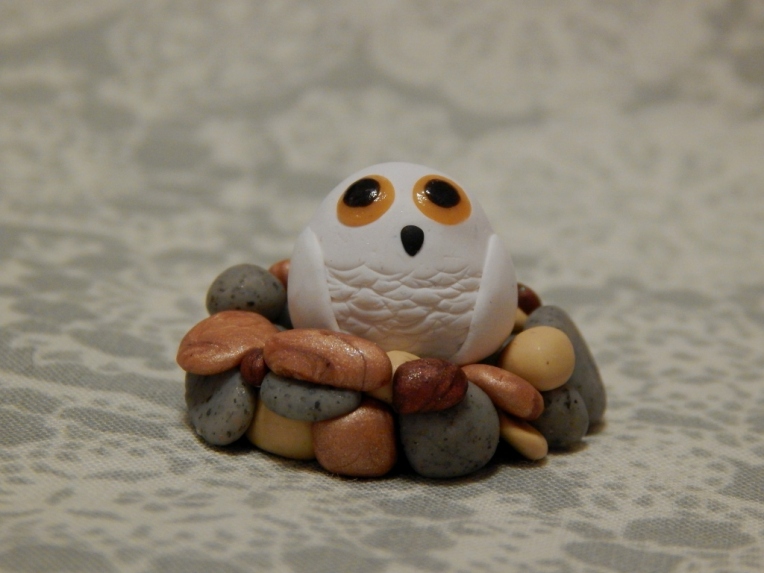
Yet another bird. (Wow, I didn’t realize I made so many birds. XD ) This guy’s name is Oliver.

snowy owlet 1.1 (1024x768)

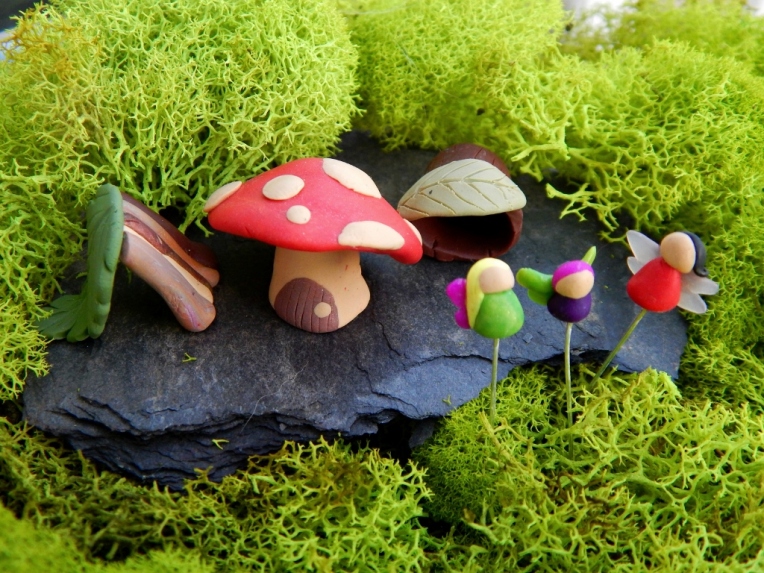
A mini fairy-village:

fairy set 2 (1024x768)

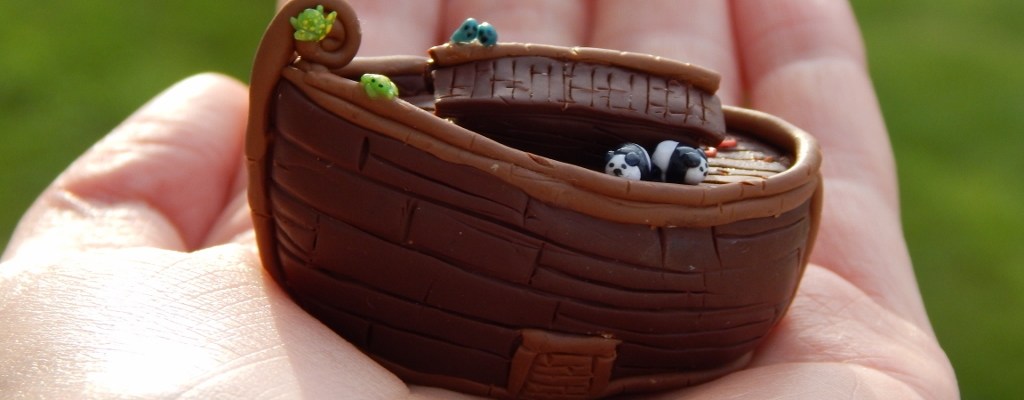
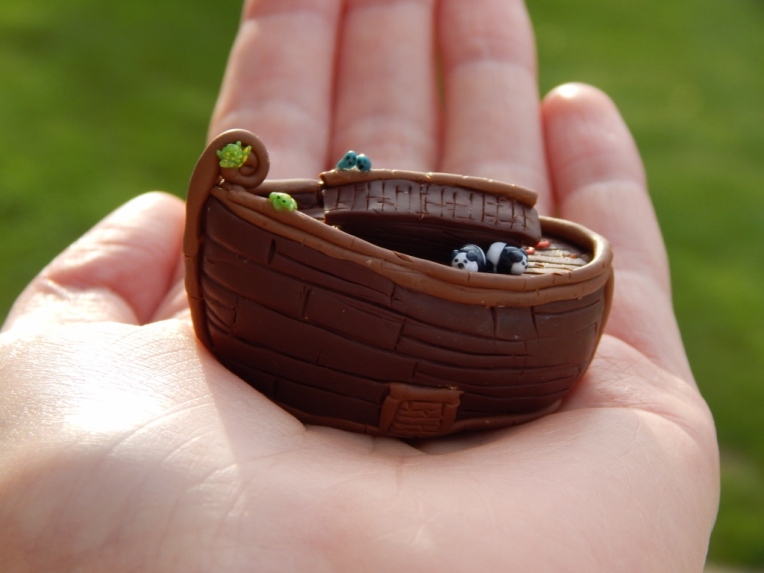
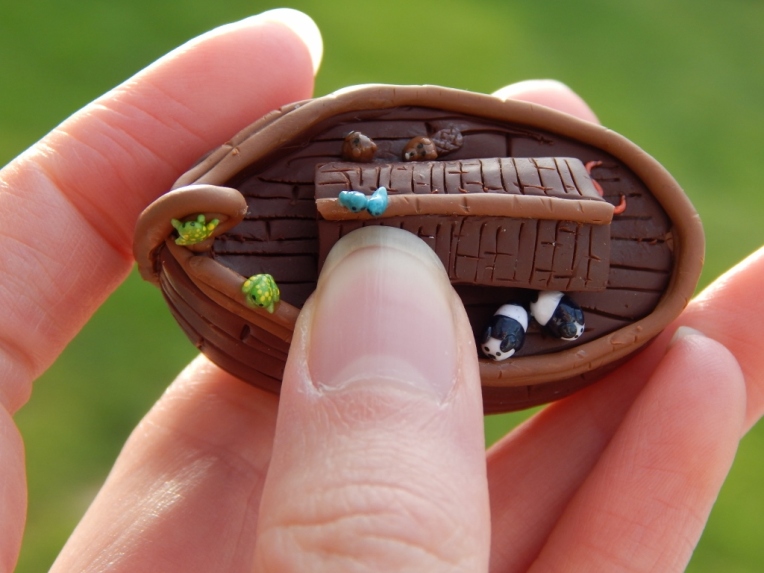
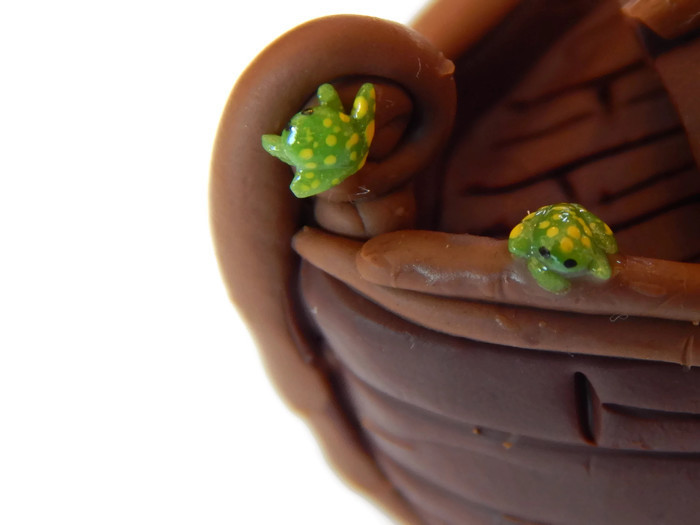
I’m kind of proud of the next thing. 😛 This is a little Noah’s Ark. I was so excited when someone bought it the same night I listed it on my shop! 😀

048 (1024x768)050 (1024x768)noah's ark 5 (700x525)

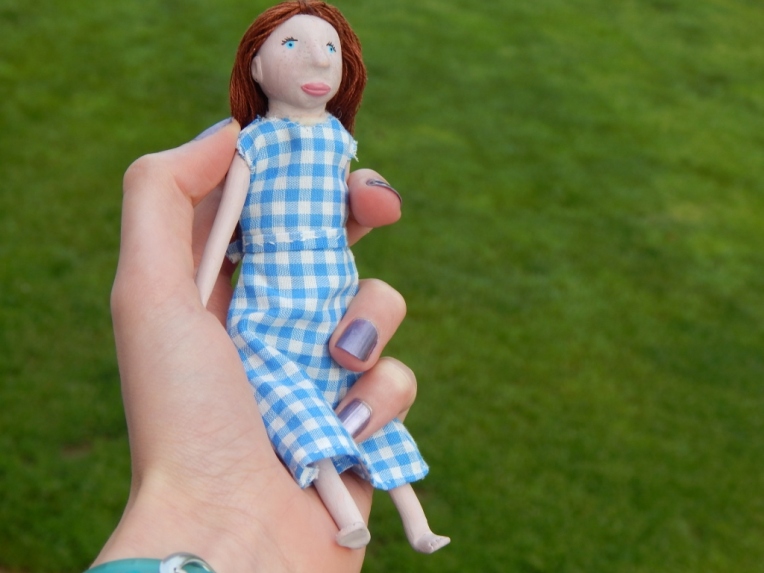
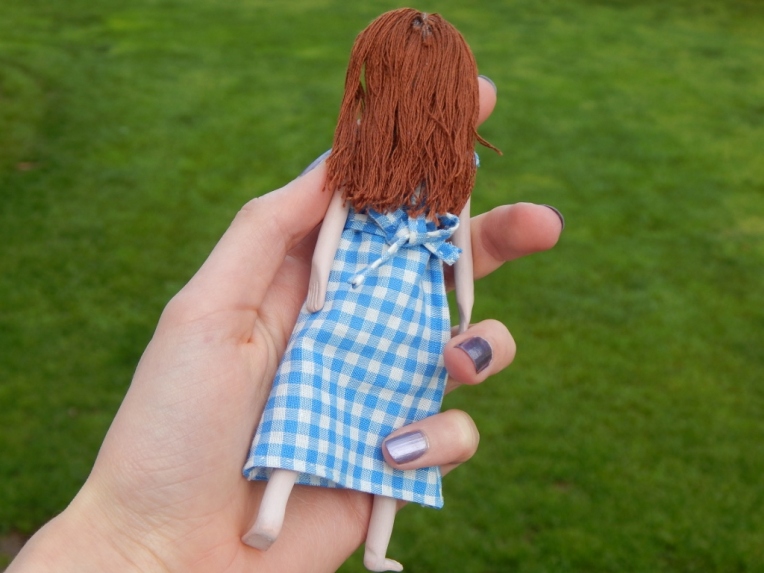
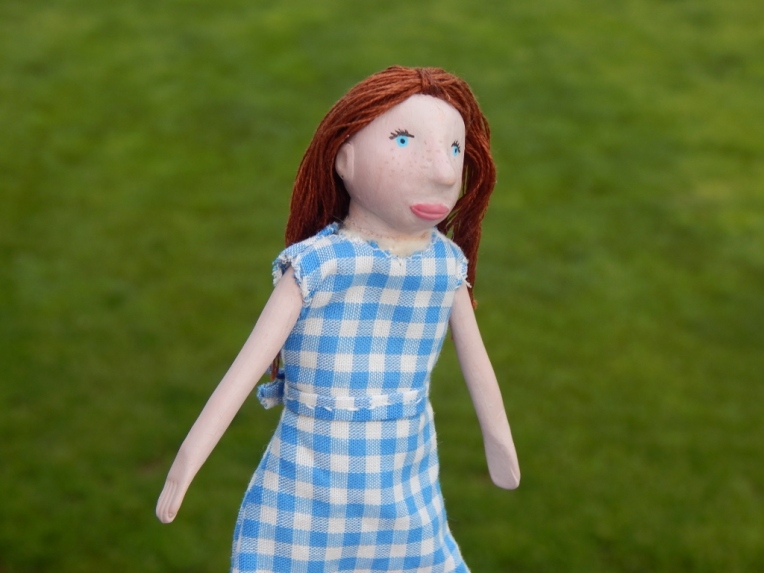
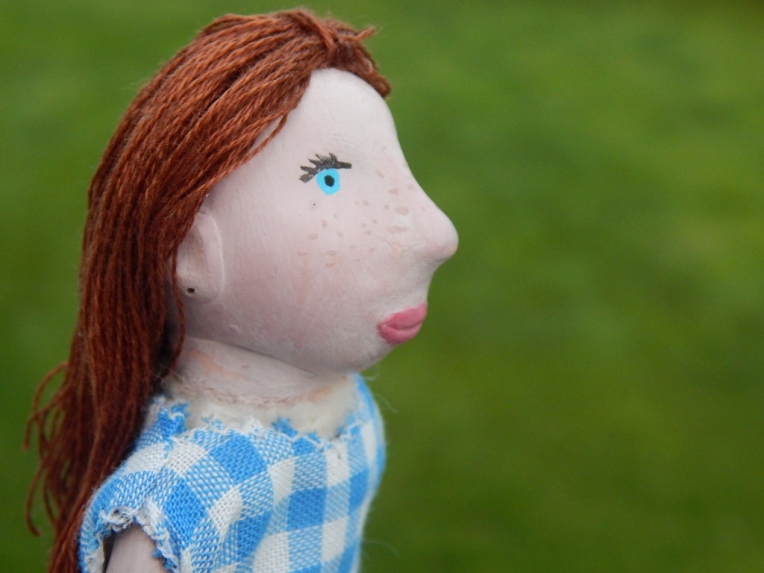
And lastly, my current masterpiece. XD XP After seeing this adorable doll made by Julia, I decided to try my own. I was going to make it a baby doll, but… as you can, see, it didn’t turn out like that. Although she’s not nearly as cute as Julia’s, I still really like how she turned out. 🙂 I want to do a photoshoot of her sometime. When I do that post, I’ll show more detailed photos and tell about her a bit more. (If you’re wondering why, in the last picture, she has a hole in her ear, it’s because I’m still working on earrings for her. 😉 )

006 (1024x768)008 (1024x768)007 (1024x768)009 (1024x768)

If you’d like to see more of my clayations, check out this post, and/or type “polymer clay” in the search box on my blog sidebar.

I hope you enjoyed this clayish post. 😀 Which thing was your favorite?

***Allison***

P. S. I just listened to “Camp Granada” by Allan Sherman and “Ebay” by Weird Al. They are hilarious songs, especially “Ebay.” XD Have you ever heard them? If not, you should. XD

Clay Doughnut Tutorial/Our Clay “Studio”

As you might already know, I l♥ve making things out of polymer clay. I especially like making miniatures, whether it be a  little snowy owlet or miniature doughnuts like I’m going to show you today! (The links will take you to my Etsy shop listings.) I’m also going to give you a tour of my clay “studio” that I share with my sister.

First, the doughnuts. The basic doughnut is super simple to make, and then, of course, you get to embellish it – yay! 🙂

  1. Mix it. Unless you already have the perfect doughnut colored clay, you’re going to need to mix up a batch of doughnut batter. I think I used white, dark brown, light brown, orange, and red clay for my mix.
  2. Cut it. If you are making more than one doughnut, you’ll want them all to be the same size. I first rolled my “batter” through a pasta machine on the thickest setting, then folded that sheet in half to make it even thicker. I used a mini-Sharpie lid to cut circles out of the dough. Don’t worry about making the circles pretty – we’ll work on that in the next step.DSCN3083 (1280x960)
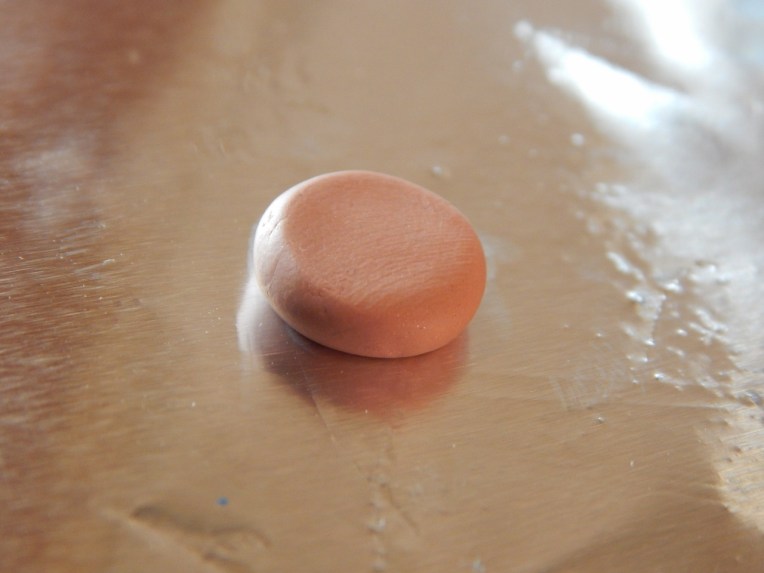
  3. Shape it. This step is easy. Roll the circles into smooth balls and press down lightly with your finger to make nice rounded cakes.DSCN3084 (1280x960)
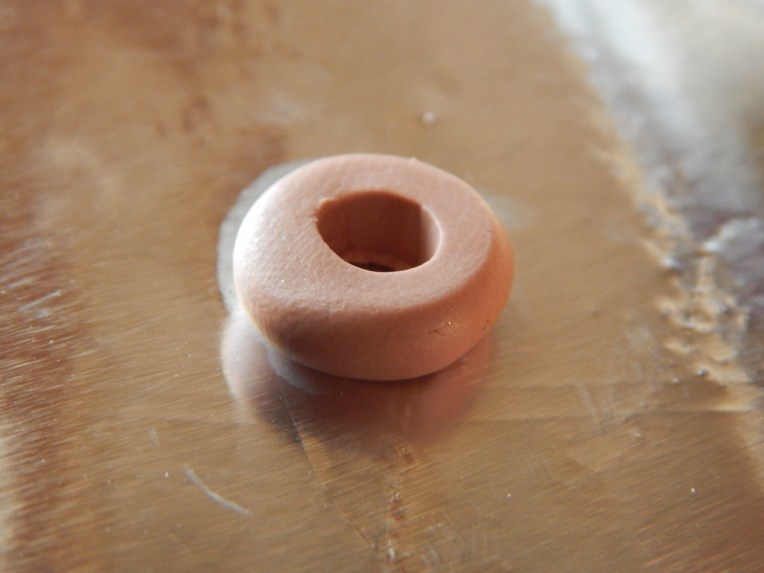
  4. Hole it. I cut a hole in the middle of my doughnuts with a straw, although if your doughnuts are a different size, you may need to use something else. Make sure the hole is in the middle, or the doughnut will look lopsided… kind of like the doughnut below. 😀DSCN3085 (1280x960)
  5. Decorate it! Yay, the fun part! You can add glaze, sprinkles, chocolate covered sardines, whatever you want. (Although if you offered me the last kind, I think I would pass. XD) Here some of the 36 doughnuts that I made. Yes I made every single sprinkle on those doughnuts by hand. And yes, it took a while. I glazed some most of the icing with a gloss glaze that makes it look much more realistic. XD Go here to see my Etsy listing of these doughnuts with a picture of each flavor.

-Allison(at the creek with bunnies, clay table) 020 (1280x960) (2)-Allison(at the creek with bunnies, clay table) 021 (1280x960) (2)-Allison(at the creek with bunnies, clay table) 019 (1280x960)

And now the clay studio! I set up a table in our school room, covered part of it with tinfoil, and arranged all of our clay stuff neatly on top. It’s really nice to have a designated place to work with clay. (Click here to see my sister’s version of this tour.) The anatomy of a clay table:

anatomy of a clay table (1280x960)

-Allison(at the creek with bunnies, clay table) 001 (1280x960) (1280x960)
Our clay table
-Allison(at the creek with bunnies, clay table) 003 (1280x960) (1280x960)
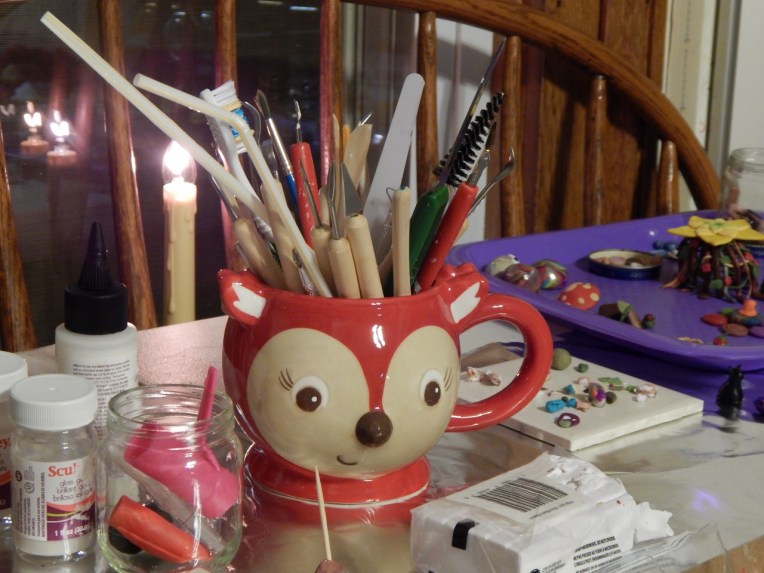
This adorable fox mug holds our clay tools.
-Allison(at the creek with bunnies, clay table) 002 (1280x960) (1280x960)
We each have a tray on which we stash our creations – this is my tray
-Allison(at the creek with bunnies, clay table) 004 (1280x960) (1280x960)
The scrap clay tile. 😀 Scrap clay can marbled into pretty balls or reused.

And thus ends my tiny tour. 🙂 I hope you enjoyed this clay-y post!

***Allison***