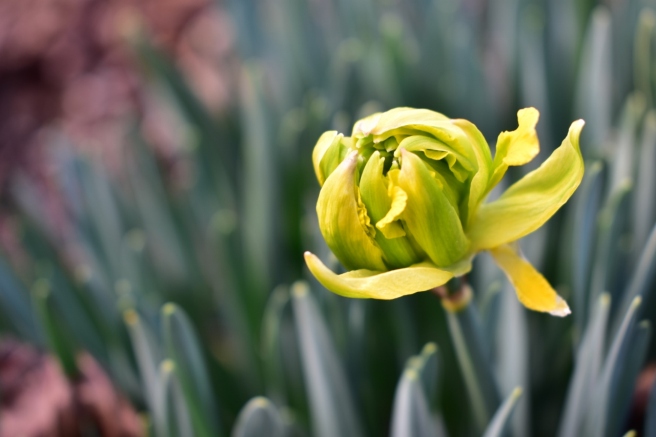
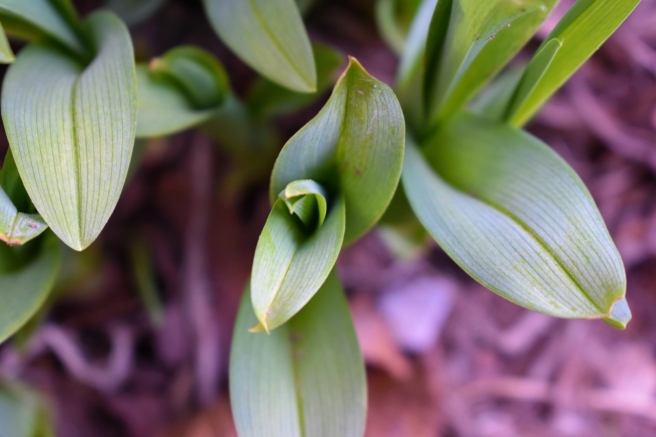
Ahh, it is SO nice outside. 🙂 I can’t believe how warm February has been! Today I went outside and snapped a few pictures of some spring things, including some gorgeous daffodils that have popped up lately.
I looove daffodils, don’t you?!
This looks like it might be a double daffodil.
AHH I absolutely love how my new camera makes the background blurry like this!
The sunshine feels (and looks) wonderful.
Pussywillows are such adorable plants. (If plants can be adorable… XD ) They’re so fuzzy! My grandma gave us a bouquet with pussy willow twigs awhile ago, and we left the twigs in the vase until it grew roots. Then we planted them, and, well, you can see that the experiment was successful. 🙂
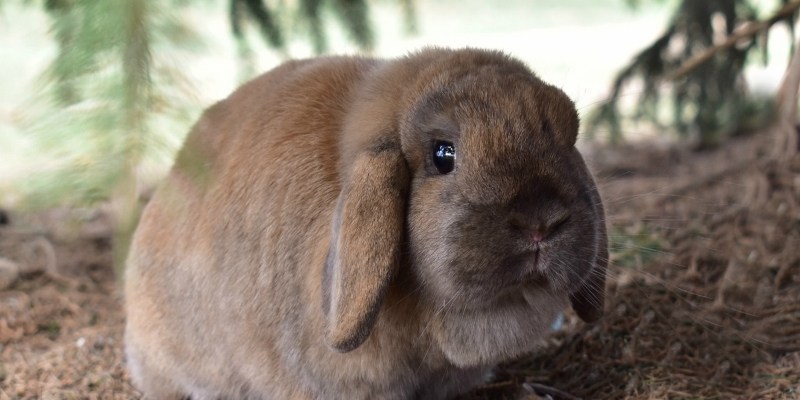
Okay so maybe Maggie isn’t really a sign of spring, but she’s still a cute model. 😀
BWAHAHAHAHA! This picture cracks me up. XD XD XD Maggie always makes this weird grimace when she scratches her ear. 😀
And on that hilarious note, I shall end this post. 🙂 I hope you enjoyed it! Which was your favorite picture?
Does it feel like spring where you live?
***Allison***
P. S. Bleh, my whole family (except Megan) either was sick, is sick, or is getting sick. 😦 I was sick already, but I think I’m getting over it now. Phew! It seems like practically everyone is getting sick all of a sudden, despite the spring-like weather.
Hello, folks! 😀 How are you guys doing today? Bien, no? 🙂
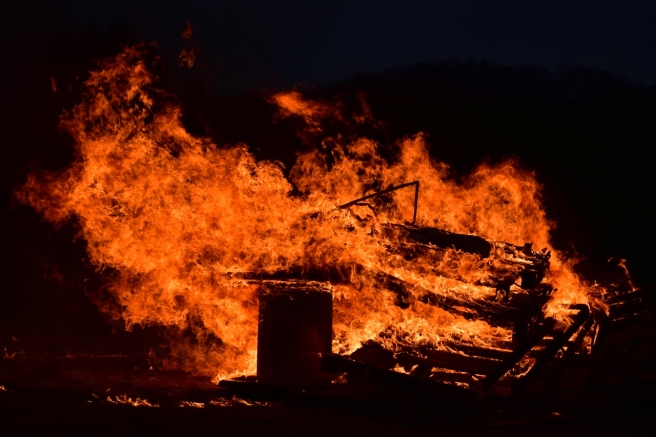
Anyway, I wanted to show you some pictures I took of a huge bonfire we burned. It was so much fun! Dad collected a big pile of scrap wood and such, and our family and cousins and grandparents came over for a picnic after we lit it. (Side note: isn’t it simply amazing that we had a picnic in FEBRUARY?! I don’t know about where you guys live, but it is so wondrously warm here! I think spring is going to be early this year.)
And to break up the huge amount of pictures, I decided to make this a sort of lyric photoshoot with the words from TobyMac’s “Like A Match”. I didn’t use the whole song; just parts of it. You can play this video if you want to hear the whole song.
Alright, now we can finally start. 🙂
I keep hearin’ people say, “I need a getaway.” We got that getaway that takes ‘em to a whole new place.
Won’t leave us empty, won’t leave us craving more, We found that fulfillin’ fire that they been lookin’ for.
If it’s real, we gotta show it… ‘Cause if it’s not, they sure gonna know it.
You and me, we gotta love. Hold nothing back!
You and me, we gotta love. Strike it up, like a match.
Burnin’ for the world, we’re
Burnin’ for the world,
Burnin’ for the world to see.
You and me, we gotta love. Strike it up, like a match.
I call up all my friends, I gotta let ‘em in I tell ‘em, “take a drink of this and never thirst again!”
If it’s real, we gotta show it, ‘Cause if it’s not, they sure gonna know it.
Burnin’ for the world, we’re
Burnin’ for the world,
Burnin’ for the world to see.
You and me, we gotta love
Strike it up, like a match.
This isn’t my favorite TobyMac song ever, but I still love it, and I think the words are so true. It’s one thing to say you believe something, to say you’re a Christian, but it’s another thing to really act on that belief, to “burn for the world to see.” It’s hard to be a “match” and burn like that for others. That’s something I really need God’s help to work on, because I simply can’t do it on my own. But thankfully, I don’t have to! God is the most powerful spark in the world.
**************
Well, thank you guys for reading this! I hope you enjoyed the post and the pictures. 🙂 Have a wonderful day, wonderful people! ♥
Our bunnies are wondrously fuzzy creatures who also happen to be quite fun to photograph. QUITE fun indeed. XD The other day Megan and Carmen and I took a few of our bunnies on an outing that resulted in many adorable photos. I hope you enjoy the squishableness!
I shall begin with my large but lovable rabbit, Lily. 😀 She might be the most photogenic of all our rabbits, as you can tell by the many pictures.
AWW! I love this picture. XD
Lily’s squishy face. XD
She has beautiful eyes, don’t you think?
Hee hee! Carmen made a “fort” for the bunnies out of an evergreen branch, and Lily actually loved it.Apparently the fort wasn’t quite big enough. XD
Now we have Clemmie, who is more skittish and preferred to hide under the evergreen trees. But that turned out to be a good photo backdrop!
OH I LOVE THIS PICTURE! I actually erased an annoying branch that was right in front of Clemmie’s face with the clone tool on PicMonkey.
AWWW!
We did manage to put Clemmie in the exercise pen, but apparently she was not impressed…
HA HA! Her expression… XDPoor thing! Megan put her Washington Nationals bracelet around Clemmie’s ears. 😛
And last but not least, we have my adorable flufferpuff, Willow. Willow is simply irresistible in real life, but unfortunately all that gray fur makes her rather un-photogenic. I got a few photos, though!
SO. FLUFFY.
Ahhh I just want to squeeze her!Please excuse the human leg. XD
Oh my goodness I love bunnies so much. ♥ Do you? Which bunny was your favorite? 😉
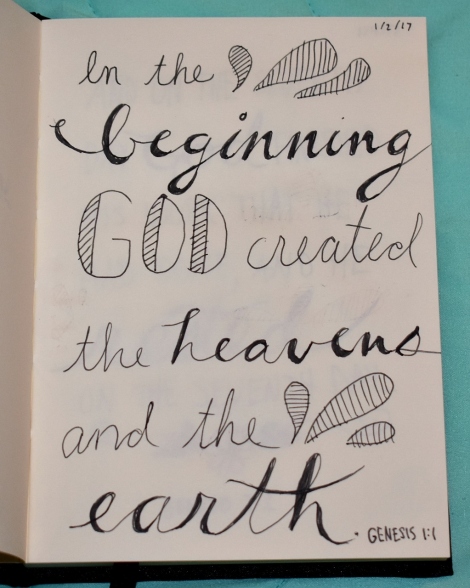
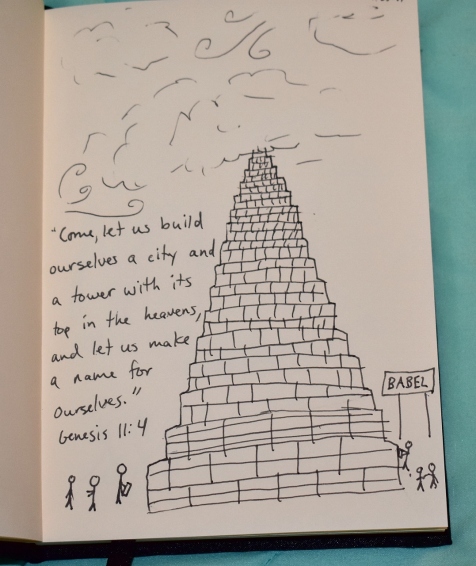
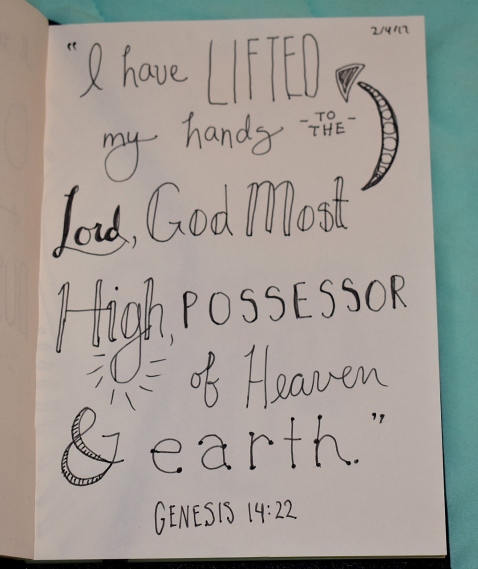
One of my goals or resolutions for this year was to start and keep a Bible journal. So far, so good! I usually read a chapter of the Bible one night and journal my favorite verse from that chapter the next night. Would you like to take a peek inside? Let me say in advance that some of the chapters were harder to journal than others, so some of the verses are a little more abstract. XD But I’m still glad I’m doing a verse from every chapter because it challenges me to look harder at each verse – and it will be really neat to look back on when I’m finished.
I use an erasable black gel pen for journaling. (You can see them on Amazon here.) I got it for a Christmas present and I love it! It’s very useful for things like this. 🙂 And yes, it really does erase! It erases just as good or better than a pencil does, but you do have to apply more pressure than erasing with a pencil.
Anyway, let’s get started. 🙂
The title page.
What a wonderful way to start the God’s Word, don’t you think? I think it’s one of the most important verses in the Bible.
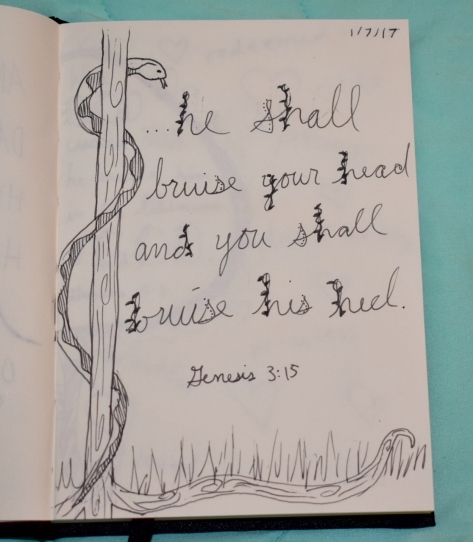
This verse might seem kind of weird at first, but it’s really important. Here God promises us that one day Jesus will return to crush the serpent’s (Satan’s) head, and thus crush evil forever.Heh heh, this is NOT my favorite page from the journaling perspective. The flower is quite odd and the page is rather cluttered. XD But it’s a really good verse. Man is the only creature made in the image of God, and that’s why it’s wrong to kill a human and not wrong to kill an animal. A very important verse indeed.
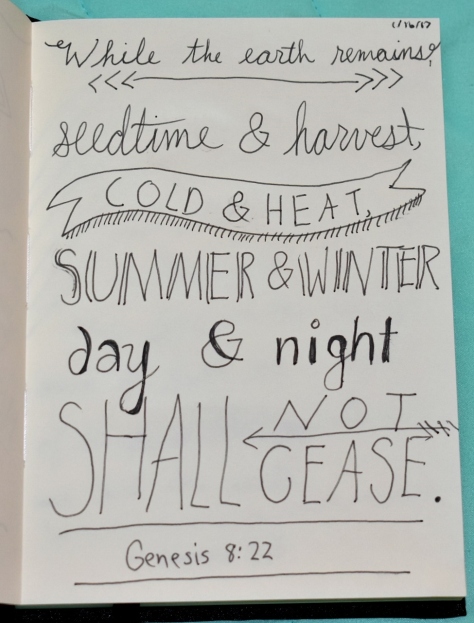
I really like how this page turned out. 🙂 I like how simple and clean-looking it is. And WOW, doesn’t it make you fidgety just to think of staying inside while it rains and rains and rains some more for 40 long days and 40 long nights… Phew!
A rainbow is beautiful not just because of its colors, but because it is a promise from God. ♥
Not such a good idea, people… XDGod’s promise to Abram.Another promise to Abram. I wonder how many people have lived and died from Creation until now. I wonder how many more are yet to come…
I really like this one too. 🙂 God is our shield, a strong and mighty fortress.
And that’s it so far! Which verse/page was your favorite? Do YOU have a Bible Journal? If you do, what are your thoughts on it?
***Allison***
P. S. Goodness, I have so many post ideas! Which of these sounds most exciting to you? A room update (we’ve added some pretty new decorations in our bedroom), another writing tips post, or a random/photography post? I have a bunch more ideas too… XD
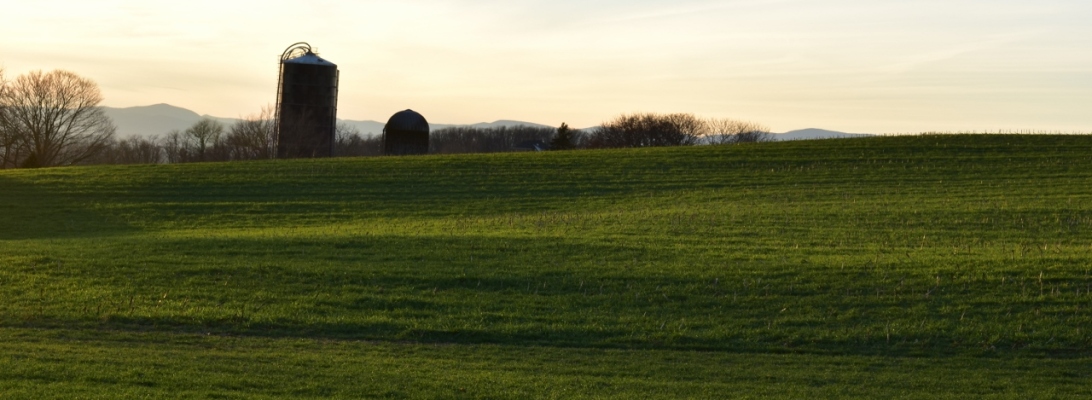
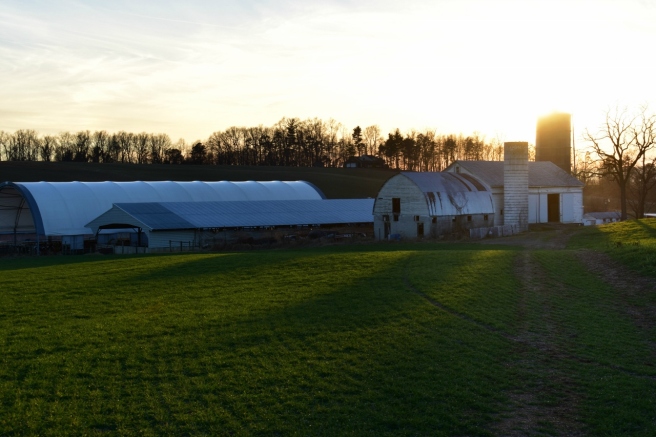
I hope you are having a lovely weekend. Tonight is family movie night for us, yippee! And we didn’t have to gather eggs today… yippee again! XD Anyway, today I wanted to show you a collection of photos from around our farm. It’s so beautiful here, even in winter. ♥ 😀 Enjoy!
We call this the Island because it’s an island of trees in the middle of the field. XD
Golden hour. ♥
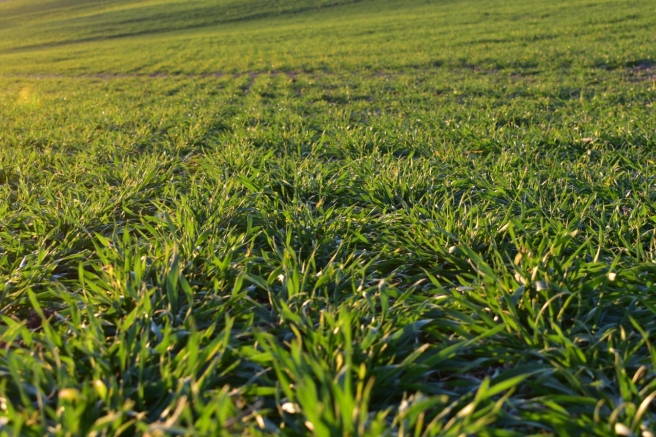
Mini nature study/farm lesson: all the green stuff in these fields is triticale (pronounced trit-ih-KAY-lee).So pretty! ♥
There’s a cute little picturesque white church just over the hill from us. I wish it was our church – we could just walk right over on Sundays! 😀 But sadly, it isn’t.The rest of these pictures are from a hidden, rather muddy pond in one of the fields. 😀It is quite hard to get into because it’s surrounded by brush and thorns and cedar trees. But it’s so secluded and neat once you get in.
I have no idea what these are, but they’re so cute!
I also found this weird gall on a cedar tree. Mini nature study lesson again: galls are made by certain insects that secrete a sort of chemical or irritant that makes the branch or leaf puff up into a gall. This protects the larva or insect inside. Doesn’t this one look kind of like a brain? XD
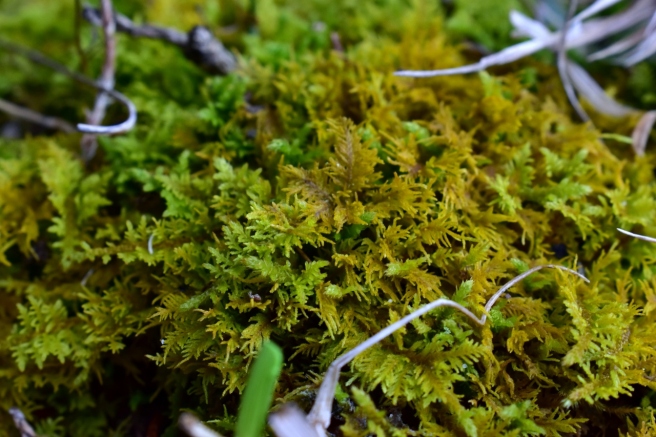
Ahhh, I love moss so much!
The boys were throwing rocks in the pond, and I had fun getting pictures of the splashes. XD
And thus we come to the end. 🙂 Which picture was your favorite? I hope you enjoyed them! 😀
***Allison***
P. S. The girls and I over at The Art Lab decided to put on a little contest for you guys. 🙂 Your goal is to create an imaginary creature named the “Wuzzing,” and whoever’s Wuzzing gets the most votes becomes Art Lab’s official mascot! 😀 Click here for more details. I can’t wait to see all your wonderful Wuzzings, and show you mine too. XD
I’m so happy that you guys liked the first part of this series! (If you missed Part 1 or would like to review it, click here.) Are you ready for Part 2? Today I’m going to show you how to use some beautiful and fun effects, along with a few tips and tricks as well.
Again, I’m going to be working with the PicMonkey editing site, so go ahead and open that up on your web browser and choose the photo you want to edit. Last time we used the Basic Edits section of PicMonkey, but today we’re going to use the Effects tab. It’s represented as a little sparkly wand symbol on the left hand sidebar of the PicMonkey Editor, just below the Basic Edits tab.
Alrighty, let’s do this!
How to Add Effects
To be honest, I don’t use effects that terribly much, but there are a few very helpful tools in the effects section of PicMonkey – and all of the effects are just so fun to play with! I’m going to edit a picture and walk you through the steps so you can do it too.
Here’s our starting picture. ♥
To begin with, I used the Focal /soften tool. This is a very useful effect, especially if you don’t have a DSLR or if your camera doesn’t allow you to adjust aperture. See, by adjusting the aperture to a smaller or lower f-stop, you can make the subject sharp and in focus while the background is beautifully soft and blurry. Personally, I LOVE this effect, and so do a lot of other people. It looks professional. But if you take photos with your phone or a little pocket camera, it’s not easy to get a blurred background. But that’s why you’re here, my friends! 😉 Let me show you how…
First, find the “Focal Soften” Tab. It’s toward the bottom.
If you’re a little overwhelmed by all the different sliders, don’t worry! Trust me, it’s not as complicated as it looks. I’m pretty sure you could all figure it out by just playing around with the sliders, but in case you want some more detailed information, here it is. 😉
The Blur slider simply adjusts how soft or blurry it is around your subject. Tip: Be careful not to add too much blur or the effect will look fake. Focal size adjusts the size of the part of the photo which is sharp, or in focus. Edge Harden determines how distinct the edge is between the blurry and non-blurry parts of the photo. Tip: I suggest normally sliding the edge hardness to zero or close to zero. This provides a smoother, more natural transition. And lastly, the Fade slider controls how much of the whole effect, Focal Soften, shows up on your picture.
Okay, next I used the “Boost” effect.
Tip: A little “Boost” can go a long way. You will quickly see this if you play with the slider. I used 8% boost for my picture, just to make the colors more vibrant.
I also added a teensy bit of the HDR effect.
This is yet another effect to use sparingly – although it’s really fun to play with the sliders and create weird and wonderful artistic effects. HDR is basically a more interesting, advanced form of the “Sharpen” tab in Basic Effects.
Lastly, I finished it off with another of my favorites: the Miniature effect.
Now, as you can see by that little yellow crown up there, this effect can only be used by Royale members. Like I mentioned in Part 1, Royale is an upgraded version of PicMonkey that gives you access to more effects, more graphics, and generally more features all around. I have Royale and I love it! You really get a lot of fun and useful stuff when you buy the package, including this Miniature effect. Tip: If you’re not sure whether to get Royale or not, you can always try out PicMonkey’s free trial!
Ahem, getting back to the effect… The Miniature effect is kind of like a combination of Focal Soften and Boost, but it’s a little different from either. For one thing, you can choose whether to make the focal shape linear or circular – in other words, make the in-focus part of the picture a rectangular section or a circular section. For landscapes and such, it works best to use the linear option, but for close-ups and individual objects, use circular. Adjust the Boost and Impact sliders to control the saturation and blur of the effect respectively.
Alright, I’m finished! Here’s the before and after photo: (before on the left and right on the right side)
So pretty!
I’m going to go through these next photos a little faster now that you know basically how the effects work.
Black and White
The classic B&W. 🙂 I like to use this effect when 1.) my photos are cluttered or have a distracting background, and 2.) when I want the photo to have a special, nostalgic feel. PicMonkey seriously has like 7 different black and white effects, and they’re all a bit different. Tip: Start with classic Black and White, then add some toned-down Super B&W or Tri-X to make your photo pop. If you use the Fade slider on Super B&W or Tri-X without first making the photo black and white, you’ll end up with a bunch of washed out colors instead of true black and white. Which, incidentally, is another neat editing technique of its own.
Here are some black and white photos I edited.
As you can tell, this isn’t completely black and white. If you click the little paintbrush symbol on the Black and White tab, a little menu with even more sliders pops up! Choose “Effect” at the top of the menu to paint on the effect you’re using, and “Original” to erase it off. I erased the black and white effect off of only the cupcakes here, for a fun pop of color.
This is an example of B&W used to create a nostalgic or special atmosphere. Black and white is great for preserving special memories or sweet moments like this. Isn’t is adorable? ♥ (By the way, the original picture was from this post.)
Clone
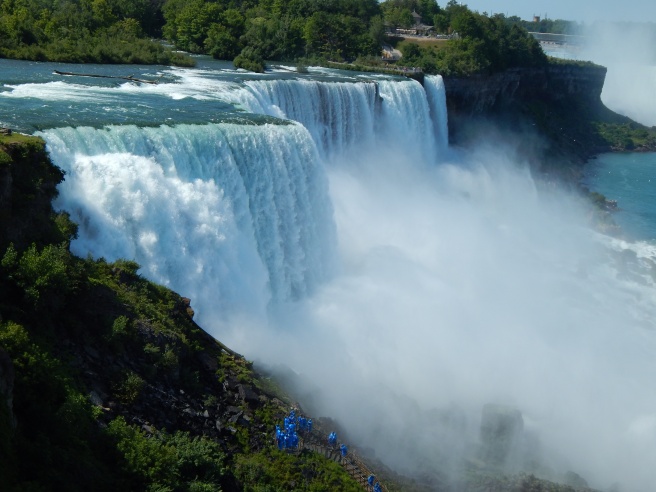
This is a VERY useful tool, but sadly, it is a Royale feature. 😦 Clone can be used to erase unwanted items right out of a picture – from power lines to trash – as long as the unwanted object is fairly small. Simply click on the part of the photo close to the unwanted object, and start erasing. This tool takes a bit of practice to master, but it is quite helpful once you do. Take this photo, for example:
Gorgeous Niagara Falls, right? And annoying blue people, huh? Well we can whisk those people far, far away with the Clone tool. Ta-daa!
Isn’t that amazing? I simply copied the bushes and rocks from around the people and painted over all that blue.
Other Tools and Tips
Two other very useful tools which I didn’t show are “Dodge” and “Burn.” Both are located at the bottom of the Effects page, and both require Royale membership to use. Use Dodge to brighten specific areas of your photo; use Burn to darken specific areas of your photo. Tip: Dodge is helpful when the face of your subject is dark or cast in shadow.
A really neat feature which PicMonkey added recently is the ability to create your own effect by layering other effects together. It’s a little button labeled “Save custom effect” up at the top of the Effects tab. But… you guessed it, it’s a Royale feature too. I actually don’t use it that much anymore, but it’s really fun to play with. 🙂 Tip: Mix up your own custom effect to provide the photos for your blog or business with one cohesive (and personalized) look.
Be creative! I encourage you to try out all the effects in the tab and play around with the sliders. Even if you don’t have Royale, PicMonkey at least lets you preview the Royale effects.
One last tip: have fun with editing, but don’t go overboard! Sometimes over-edited photos are much worse than the original. Think of the effects like make-up – use them to enhance your photo’s natural beauty, not plaster them on until your photo is unrecognizable and fake-looking. Unless, of course, you’re doing an artistic effect on purpose.
Phew! That was a lot to take in, but I hope you guys found it helpful! Let me know if you have any questions about that, and I’ll do my best to answer them. 🙂
Grace recently wondered if I could do a tutorial on how to edit photos, and I thought that was a great idea! I decided to make this a mini-series, covering basic photo editing, adding effects, touching up photos of people, and maybe a little bit of graphic design and collaging too. I’m really excited!
Anyway, let’s get started. Today I’m going to go over the basic photo editing tools and then show you how to use those tools to fix two common photo problems.
Introduction
I use PicMonkey for pretty much all of my photo editing, and I highly recommend it! It’s very easy to use, and it’s free – although you can pay to upgrade to Royale and get some extra features. (I have Royale, by the way, and I would definitely recommend it if you edit photos a lot. I’ll talk more about Royale later in the series.) But don’t worry about that for now. All the tools I’m going to go over today are completely free.
So, open PicMonkey, and hover over the bar at the top of the page where it says “Edit.” Open the photo you want to work on. The section of the editor that pops up is called “Basic Edits,” and that’s what we’ll be using today.
Basic Edits
Crop: The first tab of the “Basic Edits” section is “Crop.” Cropping is quite a valuable tool that allows you to cut out ugly surroundings from the corners of your pictures, make the composition of your photo more interesting, or simply zoom in closer to the subject.
Canvas Color: This just covers your whole picture with one color. You won’t use it to edit your photos, although it’s great for graphic designing.
Rotate: The rotate tab allows you to flip your picture any way you want. It also allows you to straighten your photo, which is very helpful if you were accidentally holding your camera crooked and your subject looks like it’s sliding off the picture. 😀
Exposure: In my opinion, this is the most important tab in the Basic Edits section (well, maybe it’s tied with “Crop”). You can work wonders simply by adjusting the exposure of a photo, and we’ll be using this tab a lot, later in this post.
Colors: This tab includes sliders for saturation and temperature, as well as a mysterious button called “Neutral Picker.” Actually, it’s not that mysterious. 🙂 Basically, when you click on the parts of your photo that should be white, the Neutral Picker auto-adjusts the temperature to turn those off-colored spots white again. Temperature controls how warm or cool a photo is – in other words, whether it has a red (warm) tint or a blue (cool) tint. And saturation, as you probably already know, makes the colors of your photo more saturated and bright.
Sharpen: Sharpness and Clarity actually ARE different – just a bit. My unscientific description is that Sharpness yields a more subtle effect and focuses on sharpening the details, while Clarity is bolder and boosts the contrast of your photo while giving it a gritty effect at the same time.
Resize: This simply downsizes your photo to a smaller file size so it takes up less space on your computer (or blog). Anywhere between 800 and 1280 (and even a bit larger) would be a good size for sharing online. One thing to keep in mind is the smaller the size, the lower the quality of the picture.
Using Your Tools
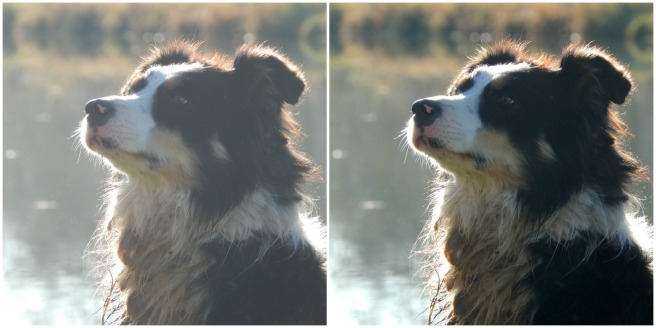
Now that you know what everything does, let’s put your tools to use! I’m just going to show you a few examples and walk you through what I did. (Note: the “before” pictures are on the left, and the “after” pictures on the right. Just in case you couldn’t tell. 😉 )
Isn’t it amazing what the Shadows slider can do? That’s seriously all I did. I moved the “Shadows” slider to -44, and that’s it.
This is a more subtle edit, but I think the “after” picture definitely looks more vibrant. The photo on the left is kind of drab and gray, so I upped the saturation a bit and adjusted the exposure. I also straightened the photo so the ocean isn’t tipped to one side like that. (And hmm, I might have lowered the temperature also, but I can’t recall for sure. Oops. XD )
The main difference in this photo is that now you can actually see the cute wittle kitten instead of losing him in the surrounding scenery. I told you cropping was a helpful tool! 😀 I also straightened the photo so the kitten wasn’t falling off the face of the earth, upped the “Sharpness” slider, and adjusted the exposure just a tad.
Wow, so much better! This picture was washed out to begin with, but by lowering the brightness and shadows, and adding a little bit of contrast, it looks bright and beautiful again like it’s supposed to. And speaking of over-exposed photos, we should move on to the fixer upper part of this post. (By the way, I l♥ve the show Fixer Upper! Have you ever watched it? It’s sooo good. Ahem…)
How to Fix an Over-Exposed Photo
An over-exposed photo is one of my most common problems. But thankfully it’s easy and fun to fix!
This is the photo we’ll start with:
Eh. The content is good, but the lighting is off: it’s too bright and has a sort of bland grayish-white wash over everything. We must rescue this poor photo in distress!
Pretty much everything you need to fix an over-exposed photo is in the Exposure tab, so go ahead and open that up. The two main things to do for an over-exposed picture are to lower the brightness and lower the shadows. Here’s a screenshot of what I did:
You can tell from the sliders that I lowered the brightness and shadows significantly (to -14 and -18 respectively) and added a tiny bit of contrast and highlights. And that’s pretty much it! (Note: I did also use the “Burn” tool to darken a few spots in the photo, but I’ll talk about that more in another post. For now, just concentrate on using the “Exposure” tab.)
Before and after. So much better!
How to Whiten a Photo
Sometimes photos have a weird yellowish or bluish tint, especially on the light parts of a picture.
Like in this photo:
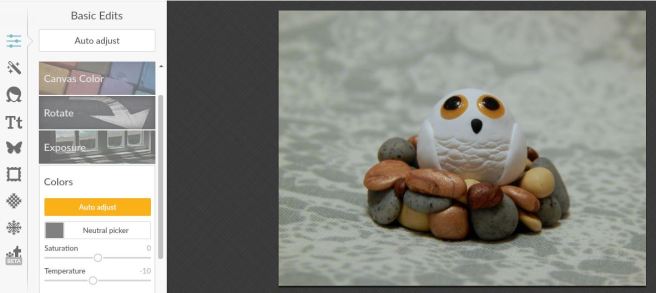
This really isn’t a bad picture, but you can see a slight orangish tinge over everything, which makes it look dingy rather than fresh and clean. It’s especially important to get good, clean-looking photos of products you sell, and this owl just so happens to be in my Etsy shop. So, let’s clean him up a bit, shall we?
First, open the “Exposure” tab.
The main thing you need to do here is bump up the highlight slider, but I also messed with the brightness and shadows slider a bit too. Here’s a tip: use mostly highlights instead of brightness to brighten up a photo, because too much brightness will make the photo look washed out. “Highlights” brightens just the white parts instead of the whole photo.
Next I opened up the “Colors” tab. Since my picture is too red, I moved the Temperature slider down to -10, which added some blue to even it out.
And here’s the before and after. A subtle difference, but do you see how the one on the right looks cleaner, fresher, and more appealing?
Well, I guess that’s it! I give you a pat on the back and a virtual bag of chocolates if you read that whole thing. O.o XD
Heh heh. I hope that was helpful to you! Feel free to ask me any questions in the comments if you didn’t understand something. 🙂
I’m so excited for today’s “art lesson” on how to draw galaxies! I learned this from the lovely video down below which was made by a teenage artist named Sydney Nielsen. She is super good at drawing!
Art Inspiration:
Ahh, so pretty. 🙂 I decided to use a slightly different technique but with the same idea for today’s art.
I started with a black paper, so it would blend in with the rest of the drawing better, but you could definitely use white if you want. I also wanted to try using oil pastels instead of colored pencils, and it turned out very well! So just a note: whenever I say “oil pastels” in this tutorial, you can also use colored pencils like she showed in the video.
Let’s get started!
You will need the following:
paper, blank envelope, or ATC
oil pastels (or colored pencils – the higher quality ones like Prismacolor work best for blending)
white acrylic paint
paintbrush
white gel pen (optional)
1. Like the video showed, I started with light colors and gradually blended in the darker shades. I used the pink and blue combination because 1.) it looked so pretty when Sydney used them and 2.) there were several shades of each in my oil pastel box. XD
Blech, what terrible picture quality. XD
2. Next I drew in the white sparkle stars. I think this is what makes the piece really special and space-y. 🙂
3. Almost done! Just need to finish the stars yet. Get out your white acrylic paint and start splattering. It works best to get your brush a little wet before splattering the paint, but you don’t have to. Do NOT do this step on your mom’s favorite fuzzy rug or in your best Sunday clothes. Trust me, that will not end well. XD
If you want, add a few more sparkle stars with a white gel pen. I like to do this because they stand out more than the pastel or colored pencil stars do. And you’re done!
Isn’t it pretty?
I hope you enjoyed this episode of Art Lab, dear readers. 😀 Have fun! And like always, if you make some art inspired by this post and would like to share it with us, we’d be delighted to see it! Get the details on how to send to us here, over at The Art Lab blog.
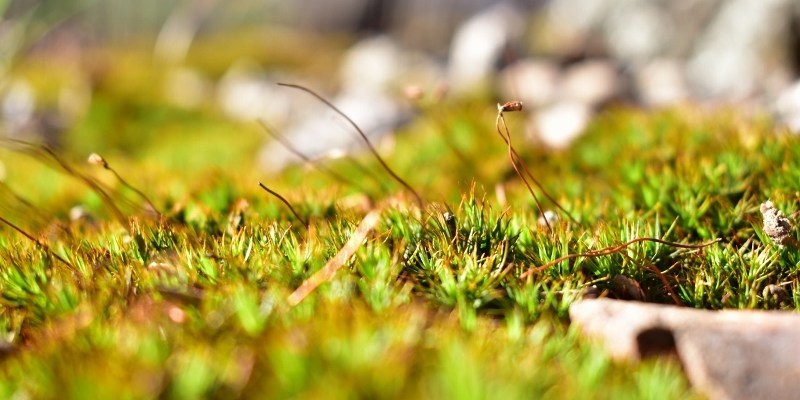
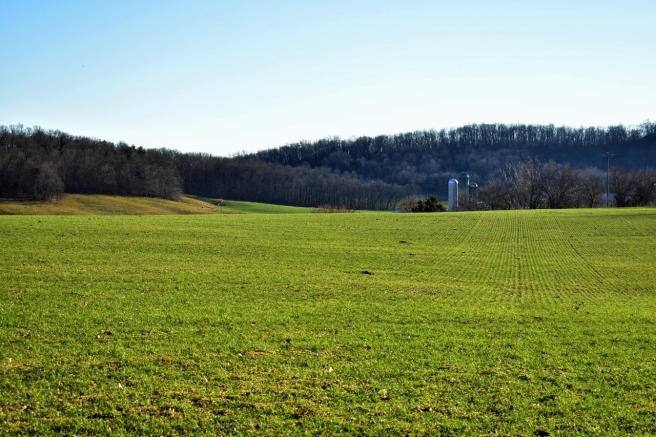
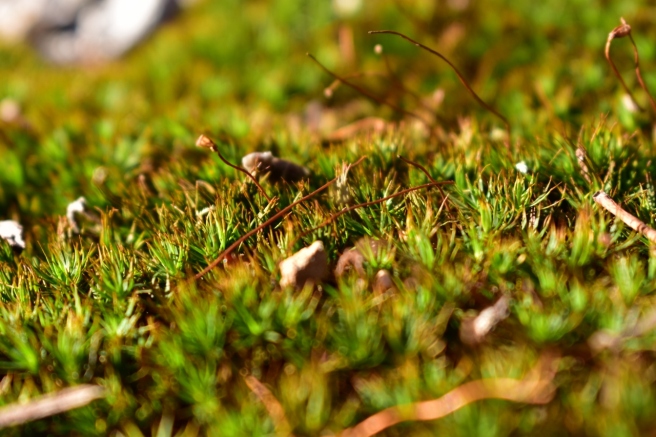
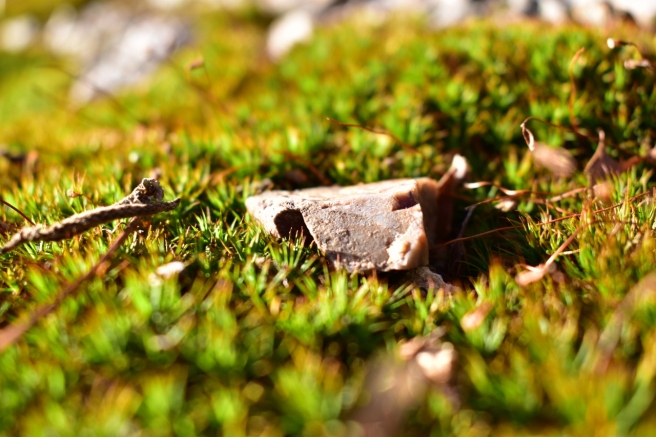
I took my camera along today for our nature study walk and got some pretty pictures of moss and farm scenery and sister’s eyes and such to show you guys. 🙂 Enjoy!
Note: I don’t always edit my pictures, but I did edit most of them this time – and it was a lot of fun!
Doesn’t this look a little like a city skyline?
I’m kinda fascinated with eyes. They’re so beautiful and unique! This is my sister Megan’s eye:
I love this picture so much! The angle makes her eye look especially large and dramatic – and pretty. 😀What do you think this thing is? Believe it or not, it’s actually a praying mantis nest! Come springtime a bunch of little babies should hatch out. 🙂Heh heh, Maggie. XD
I love our farm. ♥My friend kindly allowed me to take a picture of her!I used the miniature effect on PicMonkey for this photo.
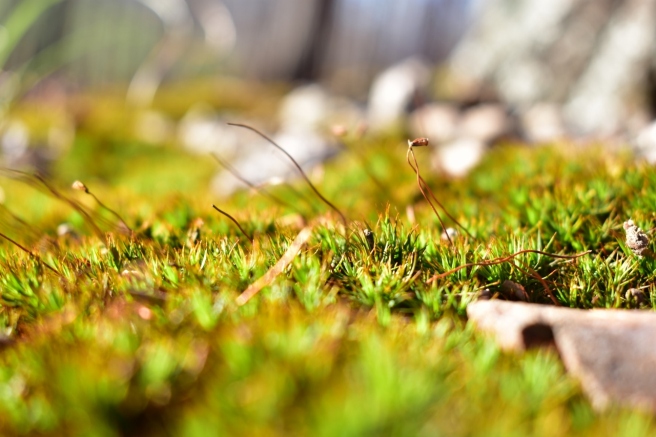
I loooove moss. The vibrant, cheery color just makes my heart happy. ♥
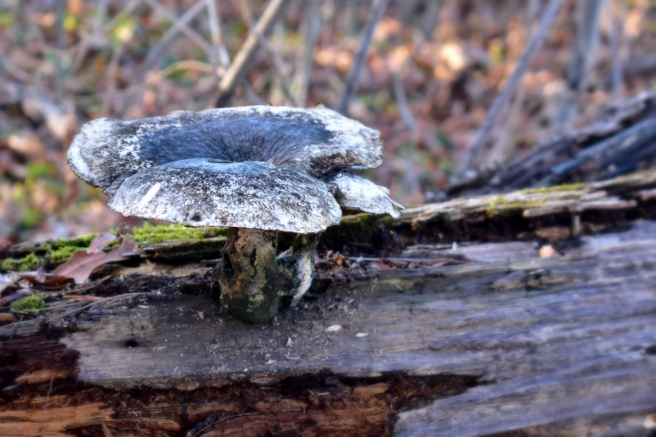
My friend found quite a large mushroom. O.o
I hope that brought some sunshine into your day! 😀 Which picture was your favorite?
As always, thank you so much for reading, and have a lovely day (or night). ♥
***Allison***
P. S. WordCrafters 2 is underway once again! Bella, (from Many Marigolds) it’s your turn to write a chapter! 😀














































 Allison Marie